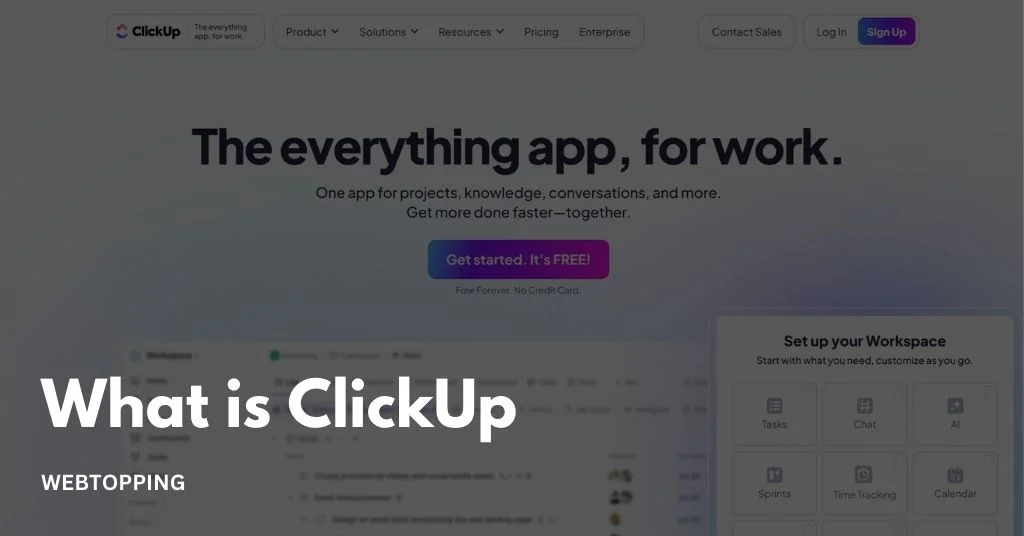
If you are looking for a robust solution to organize your work, ClickUp might be exactly what you need. ClickUp is a cloud-based productivity platform that combines project management, task tracking, and team collaboration in one place. Whether you are a freelancer, a small business, or a large enterprise, ClickUp aims to simplify workflows and increase productivity by providing flexible tools tailored to your team’s needs.
In this guide, we will explore what ClickUp is, what ClickUp is used for, how it works, its key features, benefits, pricing, and alternatives to help you decide if it is the right project management tool for you.
What is ClickUp?
ClickUp is a cloud-based project management and productivity platform that combines tasks, documents, goals, reminders, and team collaboration in one centralized space. Unlike other tools that specialize in just one function, ClickUp is an all-in-one platform designed to replace multiple productivity apps like Trello, Asana, Slack, and Google Docs.
The platform is highly flexible, which means it can work for individuals, small teams, and large organizations alike. Whether you are managing software development projects, marketing campaigns, content creation, or daily administrative tasks, ClickUp allows you to organize and track all work in one place.
What is ClickUp Used For?
ClickUp is a project management and productivity platform that helps individuals, teams, and businesses organize their work in one place. It is designed to manage tasks, projects, and workflows efficiently, making collaboration easier and reducing the need for multiple tools. Here’s a detailed breakdown of what ClickUp is used for:
1. Task and Project Management
One of the primary uses of ClickUp is project management. Whether you are managing a small personal project or a large-scale corporate initiative, ClickUp offers a wide range of tools to ensure projects run smoothly from start to finish.
- Project Planning: You can create detailed project timelines with milestones, deadlines, and dependencies. This allows you to visualize how tasks connect and what needs to be completed first.
- Task Assignment: ClickUp allows you to assign tasks to individual team members or groups. You can also set priorities, due dates, and estimated completion times to keep projects on track.
- Progress Tracking: ClickUp provides multiple views like List, Board, Gantt, and Calendar views, so managers can monitor project progress in real time. For example, a software development team can track each stage of a product release, from ideation to deployment, ensuring that deadlines are met.
- Resource Allocation: Managers can see who is overloaded and who has capacity, allowing for smarter workload distribution.
Example Use Case: A marketing team planning a product launch can use ClickUp to create tasks for content creation, social media posts, and email campaigns. Each task can be assigned to a team member, with deadlines and dependencies clearly outlined. This ensures the launch is executed on time without confusion.
2. Team Collaboration
ClickUp is designed to make teamwork easier by centralizing communication and collaboration. Instead of relying on scattered emails, chat apps, or spreadsheets, ClickUp brings everything into one platform so teams can work together efficiently.
Key Features for Collaboration:
- Comments and Mentions: Team members can comment directly on tasks or documents, allowing for contextual discussions. Using @mentions notifies specific people, so the right team members are looped in instantly. For example, a designer can tag a content writer to provide feedback on a social media post draft.
- Real-Time Editing: ClickUp allows multiple team members to edit documents, wikis, or task descriptions simultaneously. This reduces confusion from multiple versions of the same file and ensures everyone is always working on the latest version.
- Notifications and Updates: Automatic notifications keep everyone informed about changes, task completions, or approaching deadlines. This ensures that no one misses important updates and helps the team stay aligned.
- Shared Workspaces: Teams can create shared spaces, folders, and lists that organize projects and tasks. This makes it easy for everyone to know what is happening, who is responsible for what, and what the next steps are.
Example Use Case: A product development team can collaborate on a new app launch by creating a shared project in ClickUp. Developers, designers, and marketers can all comment on tasks, update progress, and share resources in real time. This eliminates confusion, reduces unnecessary meetings, and keeps everyone on the same page.
3. Goal Tracking and Performance Measurement
ClickUp is not only for managing tasks but also for tracking goals and measuring team or individual performance. This helps ensure that the work being done aligns with the company’s bigger objectives and that progress is visible.
- Setting Goals: You can define clear, measurable goals in ClickUp. Goals can be high-level (like increasing sales by 20% this quarter) or smaller, team-level goals (like completing all tasks in a project on time). Each goal can be linked to specific tasks or projects, so progress is tracked automatically.
- Tracking Progress: ClickUp shows progress in visual formats like progress bars, percentages, and charts. As tasks are completed, the linked goals update automatically, giving managers and teams a real-time view of how close they are to achieving their objectives.
- Key Results: Goals can be broken down into key results, which are smaller, actionable milestones. This allows teams to focus on concrete steps that lead to the larger goal. For example, if a goal is to launch a marketing campaign, key results might include creating content, designing graphics, and scheduling social media posts.
- Performance Insights: ClickUp provides analytics and reports showing who is completing tasks on time, which projects are ahead or behind schedule, and overall team productivity. This helps managers identify bottlenecks and areas where additional support might be needed.
Example Use Case: A sales team sets a goal to increase client onboarding by 30% in the next quarter. Each task related to client outreach, follow-ups, and documentation is linked to this goal. As team members complete these tasks, ClickUp automatically updates the progress of the goal. Managers can then see which team members are contributing the most, which tasks are causing delays, and adjust strategies accordingly.
4. Time Management and Scheduling
ClickUp acts like a personal and team assistant that helps you plan your work so nothing gets forgotten. Instead of juggling multiple tools, ClickUp keeps tasks, deadlines, and schedules in one place, making it easier to manage your day and your team’s work.
- Task Deadlines and Reminders: You can assign due dates to tasks so everyone knows when something needs to be completed. ClickUp also sends reminders for upcoming deadlines, reducing the chance of missed tasks. For example, if a designer has a deadline to deliver graphics by Friday, ClickUp will remind them ahead of time.
- Time Tracking: ClickUp has built-in time tracking tools, letting team members log how long they spend on each task. This helps managers see where time is being spent and identify tasks that may take longer than expected. For instance, a developer can track hours spent on coding versus testing, helping the team plan future projects more accurately.
- Scheduling and Calendar Views: ClickUp provides multiple scheduling views, like Calendar, Gantt, and Timeline. Teams can see which tasks are due when, plan overlapping work, and ensure resources are allocated properly. For example, a content team can plan blog posts, social media updates, and email campaigns on a shared calendar to avoid scheduling conflicts.
- Recurring Tasks: Tasks that happen regularly can be set to recur automatically. This reduces repetitive work in task creation and ensures consistent scheduling. For example, a weekly team report can be automatically created every Monday, so no one forgets it.
- Workload Management: ClickUp shows who is assigned to which tasks and how much work each person has. This allows managers to balance workloads, ensuring no one is overburdened and deadlines are realistic. For example, if one team member has five tasks due the same day, a manager can reassign one task to another member to prevent delays.
5. Workflow Automation
ClickUp allows teams to automate repetitive tasks and processes, which saves time, reduces errors, and ensures work moves smoothly without constant manual intervention. Automation in ClickUp is like having a digital assistant that handles routine tasks so the team can focus on higher-value work.
Key Features of Workflow Automation:
- Automated Task Actions: You can set up rules that trigger actions automatically when certain conditions are met. For example:
- When a task is marked Complete, it can automatically move to a Done folder.
- When a task is assigned to someone, ClickUp can automatically set a due date or priority.
This ensures tasks follow the correct workflow without someone manually updating them each time.
- Notifications and Alerts: Automation can trigger notifications to relevant team members. For instance, if a task’s status changes to Review Needed, ClickUp can notify the reviewer automatically. This keeps everyone informed without having to check manually.
- Recurring Tasks: Automation can schedule tasks to recur without any manual input. For example, a weekly team meeting or a monthly report can be automatically created at the same time every week or month.
- Custom Automation Rules: ClickUp allows teams to create custom automation tailored to their processes. Examples include:
- Assigning a task to a specific person when it enters a certain stage.
- Updating a status automatically when a subtask is completed.
- Changing priorities based on approaching deadlines.
- Integrations with Other Tools:
Automation can also extend to other platforms. For example, ClickUp can automatically create tasks from emails, Slack messages, or form submissions. This connects workflows across tools and reduces the need to switch apps constantly.
How ClickUp Works
Many users wonder how ClickUp works and whether it is difficult to use. Despite its wide range of features, ClickUp is designed to be intuitive and user-friendly. Here’s a detailed explanation of how it works:
1. Sign Up and Create a Workspace: Start by signing up with your email and creating a workspace. A workspace is the main hub where all your projects, tasks, and teams are organized.
2. Set Up Projects and Tasks: Projects are broad categories of work. Within each project, you can create tasks representing individual pieces of work. Tasks can include details such as due dates, descriptions, priority levels, and attachments.
3. Assign Tasks and Define Roles: Assign tasks to team members and clarify responsibilities. This ensures accountability and reduces confusion within the team.
4. Choose Your View: ClickUp offers multiple views including List, Board, Calendar, Gantt, and Timeline. Teams can select the view that best helps them visualize and manage their work.
5. Track Progress: Track tasks and projects through status updates, dashboards, and reporting tools. This ensures that nothing falls through the cracks and progress is always visible.
6. Collaborate on Tasks: Team members can comment, share files, and communicate directly on tasks. This keeps all relevant information in one place and improves teamwork.
7. Use Automations: ClickUp automates repetitive tasks such as assigning work, sending reminders, or updating statuses. This saves time and reduces errors.
8. Measure Performance: Dashboards and reports provide insights into productivity, task completion, and team performance. Managers can use these insights to make informed decisions.
By following these steps, teams can efficiently manage projects and tasks using ClickUp without confusion.
ClickUp Features
ClickUp is a powerful project management and productivity tool designed to organize work in one place. It helps teams plan tasks, manage deadlines, track progress, collaborate in real time, and improve overall workflow efficiency.
1. Multitask Toolbar
The Multitask Toolbar in ClickUp allows users to select multiple tasks at once and perform bulk actions quickly. It helps save time by enabling mass updates like changing status, assigning users, setting priorities, or deleting tasks together.
2. Customization
ClickUp customization lets teams tailor the platform to match their workflow. Users can create custom statuses, fields, views, and automation rules. This flexibility helps different teams manage projects in a way that fits their specific processes and goals.
3. Real Time Reporting
Real time reporting in ClickUp provides instant insights into project progress and team performance. Dashboards update automatically, showing task status, workloads, deadlines, and productivity. This helps managers make faster decisions using accurate and current data.
4. Mobile App
The ClickUp mobile app allows users to manage tasks and projects from anywhere. It supports task updates, comments, notifications, and reminders. This ensures teams stay connected, productive, and responsive even when working remotely or on the move.
How Much Does ClickUp Cost?
The cost of ClickUp depends on the pricing plan selected and the number of users. ClickUp typically charges on a per user per month basis, with discounts available for annual billing.
The Free plan costs nothing but has feature limitations. The Unlimited plan is affordable for small teams, while the Business plan is designed for growing organizations that need advanced controls and reporting. Enterprise pricing is custom and designed for large organizations with complex needs.
When considering how much does ClickUp cost, it is important to compare the value provided. Many teams replace several tools with ClickUp, which often results in overall cost savings.
ClickUp pricing in 2026
Here’s a clear 2026 ClickUp pricing breakdown for the main plans with typical annual (per-user) costs and what they include. This gives you a clear side-by-side view of the tiers and their key points:
| Plan | Annual Price (Approx) | Best For | Key Features |
| Free Forever | $0 / user / month | Personal or very small teams | Unlimited users & tasks, basic views. Storage limited (~60–100 MB). Basic automation & limits on higher-end features. |
| Unlimited | $7 / user / month | Small teams | Unlimited storage, unlimited dashboards, integrations, Gantt charts, timeline, custom fields. |
| Business | $12 / user / month | Mid-sized teams | Advanced automations, workload views, reporting, time tracking, better team management features (e.g., SSO). |
| Business Plus | ~$15–$22 / user / month | Multiple teams / larger teams | Custom roles, priority support, more guest controls and finer permissions. |
| Enterprise | Custom pricing | Large organisations | SSO, white labeling, advanced permissions, compliance, dedicated support. |
Notes:
- All paid prices above are typical annual billing rates monthly billing is usually higher per user.
- Enterprise pricing isn’t published publicly you must contact ClickUp sales.
- Add-ons such as ClickUp AI/Brain cost extra per user per month on top of the plan.
If you want, I can also include a version with monthly billing prices in one table for comparison.
What Is The Best ClickUp Alternative?
A ClickUp alternative is another project management or productivity tool that you can use if ClickUp feels too complex, expensive, or doesn’t fit your workflow. Different tools are better for different kinds of teams from simple task lists to large enterprise planning.
1. Asana: Best for Team Workflow & Collaboration
Asana helps teams stay organized with task lists, project boards, and timelines. It’s great for assigning tasks, tracking progress, and managing deadlines. Teams can collaborate easily with comments, attachments, and notifications. Its visual dashboards give a clear overview of work, while integrations with other tools improve efficiency. Asana is perfect for teams that want structured workflows without losing flexibility or collaboration.
2. Monday.com: Best for Visual Workflows
Monday.com makes project management visually intuitive with colorful boards and customizable workflows. Teams can track tasks, deadlines, and progress at a glance. Automation reduces repetitive work, while templates let teams quickly adapt the tool to their needs. Its integrations and reporting features make it suitable for marketing, development, and operations teams. Monday.com is ideal for teams that prefer visual clarity and organized, streamlined workflows.
3. Trello: Best Simple Kanban Tool
Trello is a lightweight Kanban-style project management tool. Tasks are organized into boards, lists, and cards, making it simple to track progress visually. Users can add due dates, attachments, checklists, and labels to cards for easy management. Trello’s simplicity, flexibility, and mobile-friendly interface make it ideal for small teams or individuals who want a straightforward tool without unnecessary complexity.
4. Notion: Best for Notes + Lightweight PM
Notion combines note-taking, databases, and task management in one platform. Users can create pages, kanban boards, calendars, and tables to organize tasks and projects. It’s highly customizable, making it easy to tailor to team workflows. Notion is perfect for small teams or individuals who want a flexible tool for both project management and knowledge organization without heavy, complicated features.
5. Wrike: Best for Reporting & Large Teams
Wrike is built for large teams and enterprises that need detailed project tracking and reporting. It provides Gantt charts, timelines, dashboards, and real-time collaboration. Teams can create custom workflows, assign tasks, and monitor performance with analytics. Wrike’s strong reporting and integration options make it ideal for complex projects where managers need oversight, transparency, and efficiency across multiple departments.
Is ClickUp used for project management?
Yes, ClickUp is widely used for project management. It is an all in one platform designed to help teams plan, track, and manage projects from start to finish. ClickUp allows users to create tasks, set priorities, assign work to team members, and track progress in real time. It supports multiple project views such as lists, boards, calendars, and Gantt charts, making it easy to manage different workflows.
ClickUp also includes features like time tracking, goal setting, file sharing, and automation to reduce manual work. Teams can customize dashboards and task statuses based on their needs. Because of its flexibility and wide range of tools, ClickUp is suitable for small teams, large businesses, and remote teams managing complex projects efficiently.
Frequently Asked Questions
ClickUp is often easier to use and more flexible for general work and tasks. Jira is stronger for complex software development and detailed issue tracking. ClickUp can fit more teams, while Jira suits technical projects. Which is better depends on your needs and workflow style and cost differences matters too.
Yes, you can do timesheets in ClickUp. ClickUp has a built‑in Timesheets Hub where you can track, view, edit, filter, submit, and approve time logged on tasks across your workspace. It connects with ClickUp’s time tracking and lets you manage billable or non‑billable hours.
On ClickUp’s Free Forever plan you can invite unlimited people (team members and guests) to your workspace at no cost. There isn’t a cap on how many users you can add, unlike some competitors’ free plans. However, advanced features and storage are limited on the free tier.
To use ClickUp for daily tasks, start by creating a space for your work. Add lists for projects and tasks for individual actions. Set due dates, priorities, and reminders. Use statuses to track progress. Check your dashboard daily to review and update tasks, ensuring efficient organization and productivity.