iPhones are known for their smooth performance and long term reliability. However, even the best devices can slow down over time. One common reason for this is a buildup of cache files.
Cache files are temporary data stored by apps, browsers, and websites to help your iPhone load content faster. While cache improves speed initially, too much of it can take up valuable storage space and may cause performance issues. This is why learning how to clear cache on iPhone is important for keeping your device fast and responsive.
Clearing cache can help free up storage, fix minor glitches, and improve overall performance. It is especially useful if apps are lagging, Safari feels slow, or your iPhone storage is running low.
In this complete 2026 guide, we explain everything you need to know about clearing cache on your iPhone. You will learn how to clear app cache on iPhone, and useful tips for better iPhone storage management. Whether you want smoother performance or more free space, this guide covers all the essential steps in a simple and easy to follow way.
What Is Cache on iPhone
Cache is temporary data stored by apps and web browsers to help them load faster. For example, Safari saves images, website files, and cookies so websites open more quickly the next time you visit them. Apps like Instagram, YouTube, and Maps also store photos, videos, and other data to reduce loading time and improve performance.
Although cache is helpful, too much of it can cause problems. Over time, cached files can take up a lot of storage space and may slow down your iPhone or cause apps to crash. That is why it is important to know how to clear cache on iPhone apps to maintain smooth performance and free up storage.
Why Clearing Cache on iPhone Is Important
Clearing cache on an iPhone offers several important benefits. First, it helps free up storage space. Many apps store large amounts of cached data over time, and clearing this data can quickly recover valuable space on your device.
Second, it improves performance. If an app or browser feels slow, crashes, or freezes often, clearing the cache can usually resolve the issue. Third, it helps fix bugs. Old or corrupted cache files can cause apps to behave incorrectly, and removing them allows apps to run smoothly again.
Finally, clearing cache improves privacy. It removes stored website data, cookies, trackers, and saved login sessions. For these reasons, clearing cache on an iPhone should be done regularly to keep the device fast, secure, and clutter free.
How iPhone Cache Works in iOS 2026
In 2026, iOS still does not include a single clear all cache button. Apple designs iOS to manage cache automatically in the background. This helps keep the system fast, stable, and secure. Even so, users can manually control cache using Safari settings, app offloading, deleting and reinstalling apps, and a few system level steps.
Cache on an iPhone is temporary data stored to make apps and websites load faster. Instead of downloading the same files again and again, iOS saves them locally. Over time, this cached data can grow large and use storage space, which may slow down certain apps or cause issues. On iOS 2026, cache exists in three main areas.
1. Browser Cache
Browser cache is created when you visit websites in Safari or other browsers like Chrome and Firefox. It stores images, scripts, cookies, and site data so pages open faster the next time you visit.
If the browser cache becomes too large or corrupted, websites may load incorrectly, show outdated content, or fail to open properly. Clearing browser cache can fix login problems, loading errors, and display issues. Safari allows clearing cache directly from iPhone settings, while third party browsers provide their own in app options.
2. App Cache
App cache is generated by apps such as Instagram, YouTube, Netflix, Amazon, and other social media, streaming, and shopping apps. This cache includes images, videos, search history, offline data, and temporary files that help apps run smoothly.
iOS does not offer a universal way to clear app cache. Some apps include a built in option to clear cache. If not, users can offload the app to remove cached data while keeping documents, or delete and reinstall the app to fully clear cache. Clearing app cache can free storage and fix freezing, crashing, or slow app performance.
3. System Cache
System cache consists of temporary files created by iOS itself. These files support system processes, updates, animations, and background tasks. Unlike browser and app cache, system cache is not visible to users.
Apple manages system cache automatically. iOS clears these files when storage space is low or after system updates and restarts. Users can indirectly reduce system cache by restarting the iPhone, updating iOS, or resetting settings if necessary.
How to Clear Cache and Cookies on iPhone
Your iPhone stores temporary data called cache and cookies to make apps and websites load faster. While this can improve performance, over time it can slow your device, cause glitches, or fill storage. Clearing them regularly keeps your iPhone fast, frees space, and protects your privacy.
1. Understanding Cache and Cookies
- Cache: Cache is temporary data that apps and websites save on your iPhone, such as images, scripts, and files. For example, Safari stores website images so pages load faster the next time you visit. However, too much cache can slow down apps or cause them to misbehave.
- Cookies: Cookies are small files that store information from websites, like login details, site preferences, and tracking data. They help websites remember you, but they can also track your online activity.
- Fixes problems with websites not loading properly.
- Removes outdated data that can cause apps to glitch.
- Frees up storage space on your iPhone.
- Protects your privacy by deleting tracking cookies.
2. Clearing Safari Cache and Cookies – Detailed Explanation
Safari on iPhone stores cache and cookies, which are temporary files that can slow down your browser and take up storage. Learning how to clear Safari cache on iPhone helps improve performance, fix website issues, free up space, and protect your privacy for smoother browsing.
Step-by-Step Guide
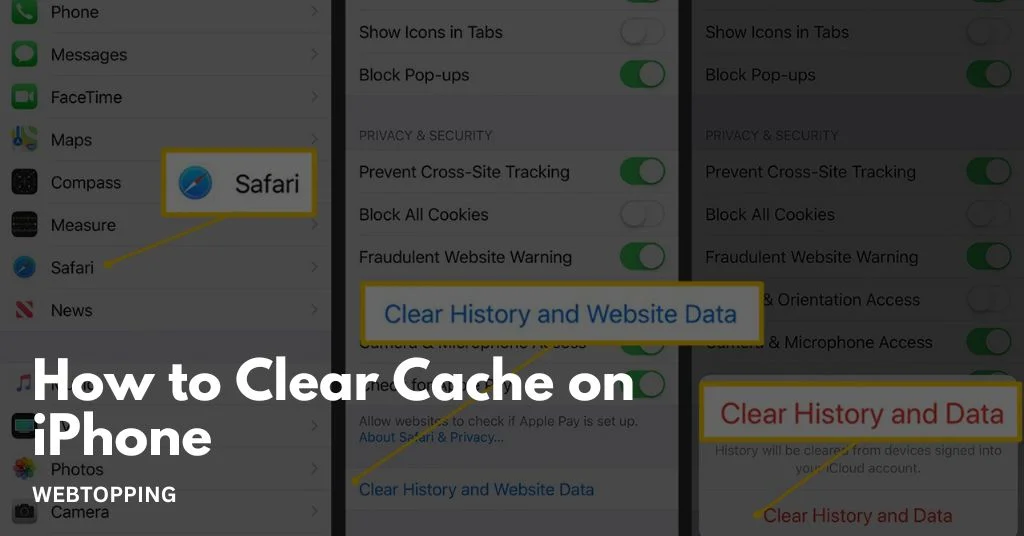
Step 1: Open Settings
- Tap the Settings app on your iPhone home screen.
- Settings is where you control all the system functions and apps.
Step 2: Go to Safari
- Scroll down until you see Safari, then tap it.
- This opens Safari’s settings where you can manage data, privacy, and security options.
Step 3: Tap Clear History and Website Data
- This option removes all browsing history, cookies, and cache stored by Safari.
- Browsing history includes the websites you visited.
- Cookies are files that save your login information and site preferences.
- Cache includes images and files that websites store to load faster.
Step 4: Confirm Clear History and Data
- Safari will ask for confirmation. Tap Clear History and Data to delete everything.
- Once cleared, all websites will treat your browser like it’s new. You will need to log in again on sites where you previously saved credentials.
What Happens After Clearing Safari Cache and Cookies
1. Speed Improvement: Removing old cached files can make Safari load websites faster.
2. Fixes Loading Problems: Some pages may not load correctly due to outdated cache. Clearing it solves these issues.
3. Auto-Fill and Logins Reset: Stored login information is removed, so you will need to log in again.
4. Privacy Protection: Cookies that track your activity across websites are deleted, improving your privacy.
5. Frees Storage Space: Cache files can take up significant storage over time, especially if you visit image-heavy websites.
3. Clearing Cache and Cookies in Other Browsers
If you use browsers other than Safari, such as Chrome, Firefox, or Edge, they also store cache and cookies. Knowing how to clear browser cache on iPhone for these apps can help fix slow-loading pages, free up storage space, and protect your privacy. Each browser has its own method: usually, you can access the settings within the app, find the Privacy or History section, and select the option to clear browsing data, including cache and cookies. Regularly clearing them ensures your browser runs smoothly and keeps your personal data safe.
A. Google Chrome
1. Open the Chrome app on your iPhone.
2. Tap the three dots at the bottom-right corner to open the menu.
3. Tap History → Clear Browsing Data.
4. Select the options:
- Cookies, Site Data: removes saved login information and preferences.
- Cached Images and Files: removes temporary files stored to make websites load faster.
5. Tap Clear Browsing Data, then Confirm.
What happens:
- Your Chrome browser will remove old website data.
- You may need to log in again on sites where you were previously signed in.
- Website pages will load fresh with updated content.
B. Mozilla Firefox
1. Open the Firefox app.
2. Tap the three-line menu at the bottom-right corner, then go to Settings → Data Management.
3. Toggle Cache and Cookies to select them.
4. Tap Clear Private Data.
What happens:
- Clears stored cache and cookies from Firefox.
- Removes stored login details and website preferences.
- Helps fix page loading issues and speeds up the browser.
C. Microsoft Edge
1. Open the Edge app on your iPhone.
2. Tap Settings → Privacy → Clear Browsing Data.
3. Choose:
- Cookies and Site Data
- Cached Images and Files
4. Tap Clear.
What happens:
- Old cookies and cache are removed.
- Improves performance and fixes website loading problems.
- Protects your privacy by deleting tracking data.
Extra Tips for All Browsers
- Clearing cache does not delete bookmarks or saved passwords unless you specifically choose those options.
- If a website is still not loading correctly, try restarting the browser after clearing the cache.
- Regular cleaning every 1–2 months keeps your browser fast and storage optimized.
How to Clear App Cache on iPhone
iPhones do not have a universal Clear Cache button like Android phones. This is because iOS is designed to manage storage and cache automatically. However, users can still clear cached data using a few different methods. Clearing cache helps apps run faster, fixes bugs, and frees up storage space.
Method 1: Offload Unused Apps
1. Open Settings.
2. Tap General > iPhone Storage.
3. Scroll down to find the app you want to offload.
4. Tap the app and select Offload App.
5. After the app is offloaded, reinstall it from the App Store.
Why it works: When you offload an app, iOS deletes the app program files, which includes cached files. Your saved data (like login information, messages, or game progress) stays safe. When you reinstall, you get a fresh version of the app without the old cache.
Method 2: Delete and Reinstall Apps
If an app has a very large cache or is misbehaving, the most reliable way to clear it is to delete the app completely and reinstall it.
1. Press and hold the app icon on the Home screen.
2. Tap Remove App, then Delete App to remove it completely.
3. Open the App Store and reinstall the app.
Note: Make sure any important data is backed up, either in iCloud or the app’s own backup system, before deleting.
Method 3: Clear Cache Within App Settings
Some apps allow you to clear cached data directly from their internal settings. This method is faster and easier than offloading or deleting the app.
Steps for Popular Apps:
- Instagram: Open the app → Settings > Account > Storage > Clear Cache.
- WhatsApp: Open the app → Settings > Storage and Data > Manage Storage → Remove unwanted files.
Why it works: Apps store temporary files like images, videos, or browsing history to make the app run faster. Over time, these files can take up significant storage. Clearing cache from the app settings removes these temporary files without affecting your saved data, such as messages, photos, or account information.
Tip: Regularly checking app settings for cache management can help maintain storage space and improve app performance.
How to Clear Cache on iPhone Apps Automatically
Clearing cache on iPhone apps automatically isn’t directly possible because iOS doesn’t provide a system-wide setting for this. However, you can manage storage and reduce cached data efficiently. First, go to Settings > General > iPhone Storage. Here, you’ll see apps and the space they use. Some apps, like Safari, allow automatic cache clearing; for Safari, go to Settings > Safari > Clear History and Website Data.
For other apps, you can enable Offload Unused Apps, which removes the app but keeps its data, effectively clearing temporary files. Regularly updating apps and restarting your iPhone also helps reduce cache buildup. While full automation isn’t available, these steps keep your device optimized with minimal manual effort.
iPhone Storage Management Tips for 2026
Here’s a detailed guide on iPhone storage management tips for 2026. Managing storage has become even more important as apps, photos, and videos continue to grow in size.
1. Use iCloud and Cloud Services: iCloud allows you to store photos, videos, and files in the cloud instead of your device. You can also use Google Drive, Dropbox, or OneDrive to offload large files. Enabling iCloud Photos automatically uploads your media, freeing device storage.
2. Review and Delete Large Apps: Go to Settings > General > iPhone Storage to see a list of apps by size. Remove apps you rarely use or offload them temporarily; offloading keeps app data but removes the app itself.
3. Clear Cache and Temporary Files: Some apps, like social media or streaming apps, accumulate cache over time. Clearing app cache through settings or reinstalling the app helps free up space.
4. Optimize Media Storage: Use Optimize iPhone Storage for photos and videos to keep smaller versions on the device while storing full-resolution versions in iCloud. For videos, consider compressing or moving older files to external storage.
5. Delete Old Messages and Attachments: iMessage and WhatsApp media can take up a lot of space. Set messages to auto-delete after 30 days or 1 year in Settings > Messages, and remove large attachments manually.
6. Manage Downloads and Offline Content: Check apps like Spotify, Netflix, or Podcasts for downloaded content. Delete episodes, songs, or movies you’ve already consumed.
7. Use Smart Storage Management Features: iOS 17 and beyond include recommendations under Settings > iPhone Storage, such as reviewing large attachments, deleting duplicate files, and removing unused apps.
8. Regular Backups and Cleanup: Back up your iPhone to iCloud or a computer, then delete old files, apps, or media you don’t need. Regular cleanup prevents storage from filling up unexpectedly.
Following these tips helps keep your iPhone fast, responsive, and ready for new apps, photos, or updates without worrying about storage limits.
Final Thoughts
Knowing how to clear cache on an iPhone is essential in 2026. Although Apple does not offer a one-tap solution, the methods outlined above are safe, effective, and easy to follow. From clearing Safari cache to managing app cache and optimizing storage, these steps help keep your iPhone fast and reliable.
Clearing cache should be a regular part of iPhone maintenance. By following the right approach, storage remains organized, apps run smoothly, and your iPhone continues to perform at its best.
Frequently Asked Questions (FAQs)
Yes, clearing cache on an iPhone can help free storage, improve app performance, and fix loading issues. Safari, apps, and system caches store temporary data that may slow the device over time, so periodic clearing keeps it running smoothly.
For large apps, go to Settings → General → iPhone Storage → select the app. Offload or delete and reinstall the app to remove stored cache. This works well for Instagram, YouTube, Netflix, and other apps with heavy cache.
Clearing cache usually removes temporary files like images, scripts, or offline data. Saved passwords, messages, and account information are generally safe unless you choose to clear cookies or app data stored in settings.
App cache is temporary data stored by apps like images, videos, offline files, and scripts. Clearing it helps free up storage, fix app crashes or slowdowns, and keeps your iPhone running smoothly.
Use Settings → General → iPhone Storage to see which apps use the most space. Offload unused apps, clear app cache, optimize photo storage with iCloud, and remove old messages or downloads to maintain storage and speed.
Yes, clearing cache can slightly improve iPhone battery life. Large cache and temporary files force apps to process extra data, using more power. Removing these files reduces background workload, helping apps run more efficiently and conserving battery over time.