Hiding apps on an iPhone can help you keep your device organized, protect your privacy, or simply reduce clutter on your home screen. Apple offers multiple ways to hide apps without deleting them, making it easy to manage what appears on your device.
You can move apps to the App Library, use folders, restrict apps through Screen Time, or hide pre-installed apps from the home screen. Each method ensures your apps remain accessible when needed but out of sight for a cleaner look.
In this guide, we will explain how to hide apps on iPhone step by step, including tips on hidden apps on iPhone, iPhone privacy settings, and more, so you can control your device efficiently.
Why You Might Want to Hide Apps on iPhone
Hiding apps on your iPhone helps protect your privacy, maintain security, organize your home screen, and control what children or other users can access. It keeps apps out of sight without removing them entirely.
1. Privacy and Security Reasons
Some apps contain sensitive information, like banking, messaging, or health data. Hiding these apps prevents others from easily accessing your private information if they use your phone. It also reduces the risk of accidental data exposure, making your personal and financial information safer while keeping these apps fully functional for your use.
2. Organization
Many people have numerous apps, but not all are used regularly. Hiding apps you rarely use declutters your home screen and makes it easier to find the apps you use daily. This creates a cleaner, more organized interface, reducing visual clutter and improving overall navigation, while still keeping the hidden apps installed for whenever you need them.
3. Parental Control
iPhone users can hide apps to control what children or other users can access. Certain apps may contain content unsuitable for kids or may allow unintended purchases. By hiding these apps, parents can ensure a safer environment on the device while still keeping the apps installed, giving flexibility to restore access when appropriate without having to delete them.
4. Keeping Apps Hidden Without Deleting (expanded explanation)
iPhone allows you to hide apps without deleting them, meaning the apps remain installed but are not visible on the home screen. This is useful for maintaining privacy, reducing clutter, or controlling access for children. Hidden apps can be accessed later via search, App Library, or settings. This approach ensures convenience, security, and organization while avoiding the hassle of reinstalling apps.
How to Hide Apps on iPhone Without Deleting It
Apple designs iPhone with a strong focus on privacy, security, and simplicity. However, Apple also believes that apps should never be fully hidden in a way that could confuse users or reduce security. That is why there is no single hide app button on iPhone.
Instead, iOS provides multiple built in features that work together to hide apps without deleting them. These tools are flexible and powerful. Some help keep the Home Screen clean. Some protect private apps. Some are perfect for parents. Others help improve focus and productivity.
Each method below serves a different purpose. One method alone can help, but combining two or more methods gives the best and most secure result.
Method 1: Hide Apps on iPhone Home Screen Using App Library
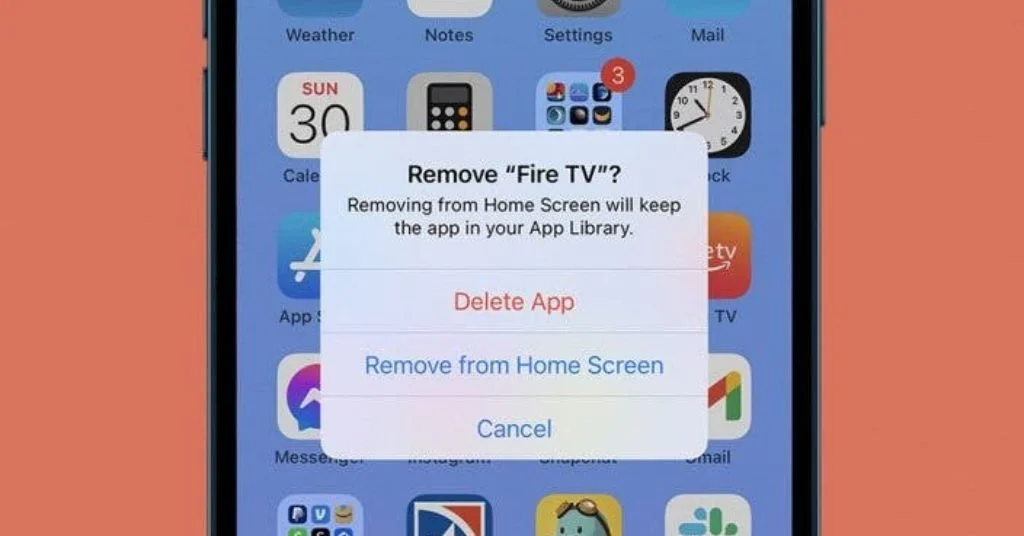
The App Library is one of the easiest and safest ways to hide apps on an iPhone. Introduced in iOS 14, the App Library automatically stores all installed apps in categorized folders that are accessible by swiping left past the last Home Screen page. When you remove an app from the Home Screen, it is not deleted. It simply moves to the App Library. This method is perfect for users who want a clean Home Screen without uninstalling apps. The app remains fully functional and can still receive updates and notifications.
Key Points:
1. Long press the app icon on the Home Screen.
2. Tap Remove App from the menu.
3. Select Remove from Home Screen, not Delete.
4. The app moves to the App Library automatically.
5. Apps remain accessible through the App Library search bar.
6. This method is fast, safe, and reversible anytime.
Method 2: Hide Apps Using App Library Only Setup
If you want maximum privacy and a minimal Home Screen, this method is ideal. Apple allows users to keep all apps inside the App Library while keeping the Home Screen nearly empty. This setup makes it difficult for others to casually browse installed apps. With this method, new apps automatically go to the App Library instead of appearing on the Home Screen.
Key Points:
1. Open Settings > Home Screen.
2. Select App Library Only under new app downloads.
3. Manually remove existing apps from Home Screen pages.
4. Keep only essential widgets if needed.
5. Access all apps through the App Library swipe.
6. Ideal for privacy focused and minimal users.
Method 3: Hide Apps on iPhone in Settings Using Screen Time
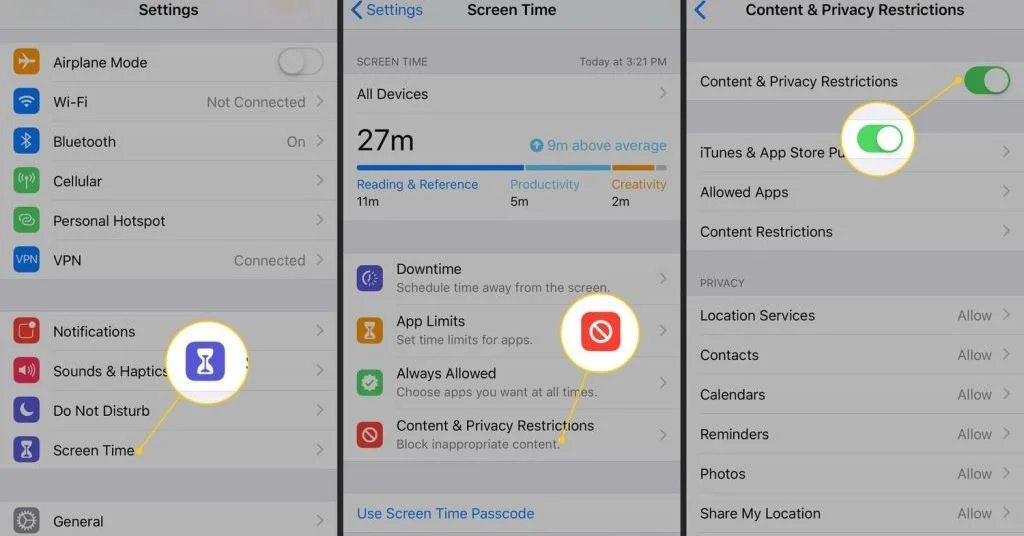
Screen Time is a built in iOS feature that helps control and restrict app usage. By using Screen Time settings, users can hide specific apps or entire app categories from the Home Screen and search results. This method is widely used by parents to control access, but it also works well for personal privacy.
Once an app is restricted, it cannot be opened or found unless the restrictions are changed. This makes Screen Time a reliable way to hide apps without deleting them from the iPhone.
Key Points:
1. Open Settings and tap Screen Time.
2. Turn on Screen Time if it is not already enabled.
3. Tap Content & Privacy Restrictions.
4. Select Allowed Apps or choose app categories.
5. Disable the apps you want to hide until restrictions are removed.
Method 4: Hide Apps by Moving Them into Folders
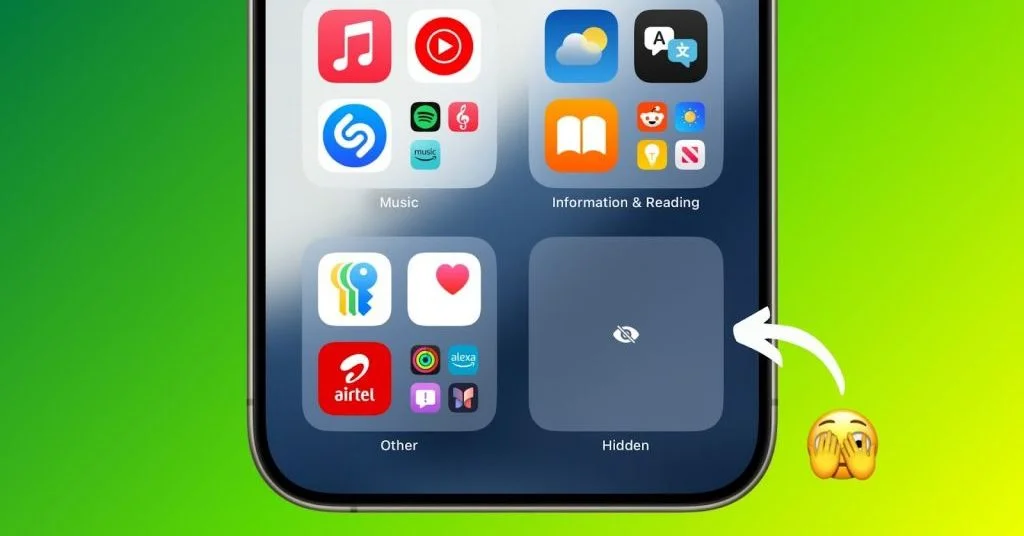
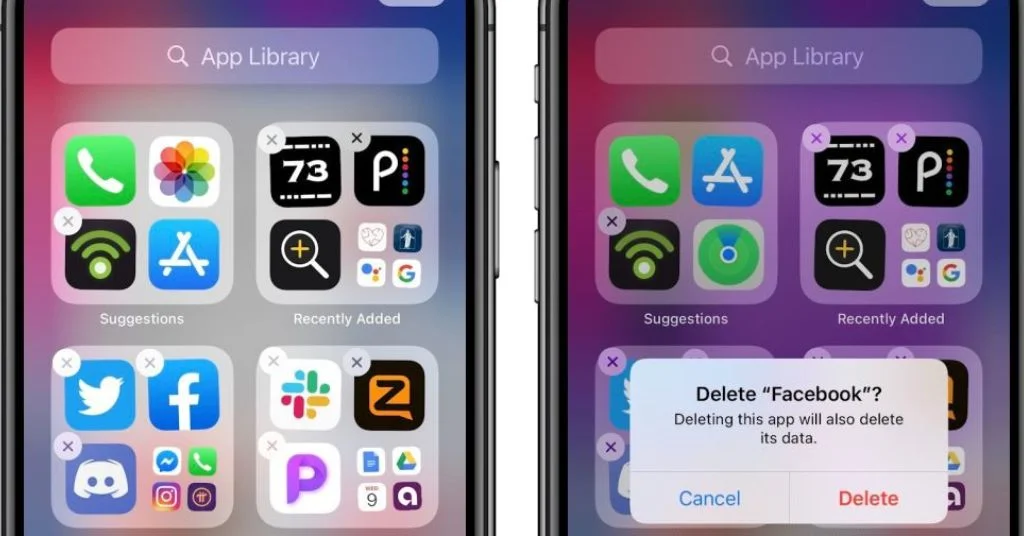
Using folders is a simple and effective way to hide apps visually on an iPhone. While this method does not completely remove apps from view, it makes them much less noticeable during normal use.
By placing apps inside folders and moving them to deeper pages, they become harder to find for anyone casually browsing the phone. This method works best when combined with App Library or Search restrictions for better privacy and control.
Key Points:
1. Drag one app icon onto another to create a folder.
2. Rename the folder using a simple and generic name.
3. Move the app to the second or third page inside the folder.
4. Keep commonly used apps on the first folder page.
5. This reduces visibility and prevents accidental access.
6. No iPhone settings changes are required.
Method 5: Hide Apps from Search and Siri Suggestions
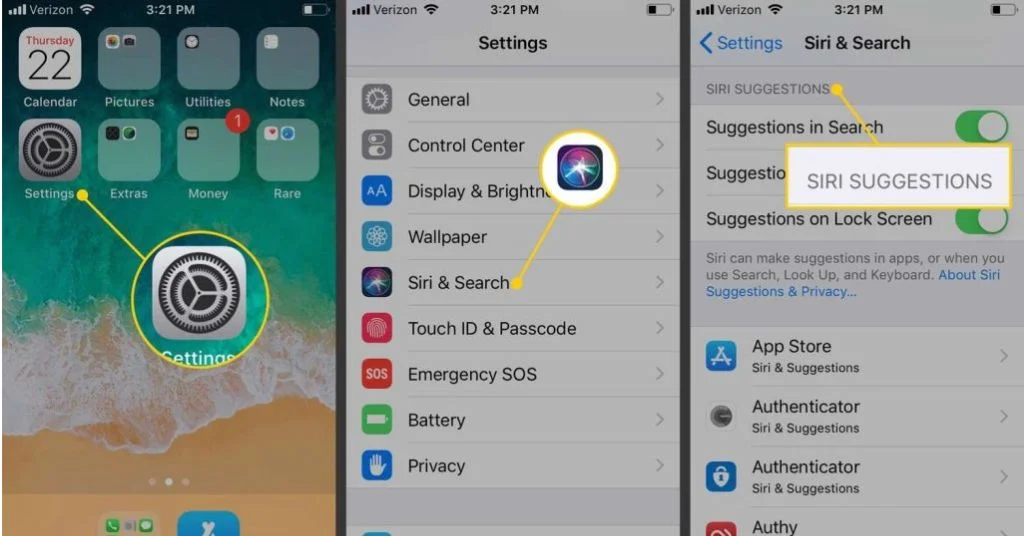
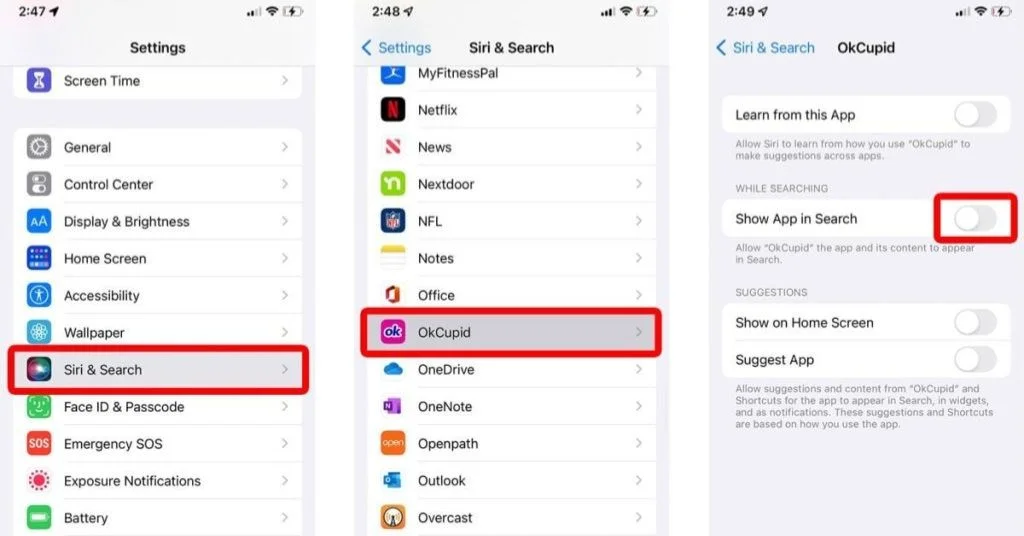
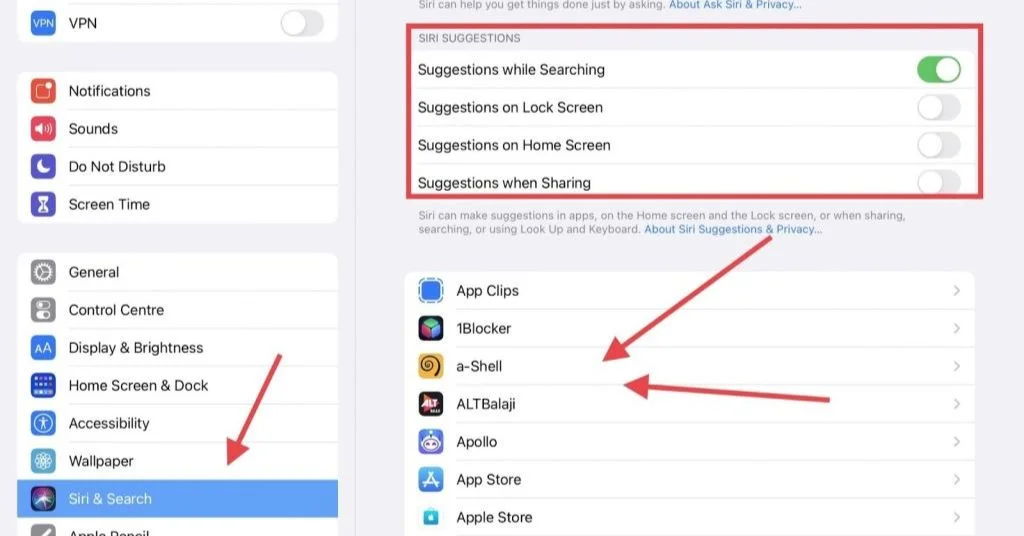
Even after removing apps from the Home Screen, they can still appear in Spotlight Search or Siri suggestions, which reduces privacy. This method helps hide those apps completely by removing them from search results and smart suggestions.
Once disabled, the app will not show up when typing in search or when Siri suggests apps based on usage. The app remains installed and accessible only through the App Library, making this an effective way to improve privacy without deleting anything.
Key Points:
1. Open Settings and tap Siri & Search.
2. Scroll down and select the app you want to hide.
3. Turn off Show App in Search.
4. Disable Show Content in Search.
5. Turn off Siri Suggestions so the app no longer appears in searches.
Method 6: Hide Apps Using Focus Mode (Advanced Method)
Focus Mode is a powerful iOS feature that helps hide apps by showing only selected apps on a custom Home Screen. When Focus Mode is active, all other apps are hidden from view, reducing distractions and improving privacy.
This method is ideal for work time, personal privacy, or when you want a clean and distraction free screen. Apps remain installed and fully safe, and they reappear automatically when Focus Mode is turned off.
Key Points:
1. Open Settings and tap Focus.
2. Create a new custom Focus Mode.
3. Select the apps you want to allow in that mode.
4. Assign a specific Home Screen page to the Focus Mode.
5. Turn on Focus Mode when needed, and hidden apps return once it is turned off.
How to Find Hidden Apps on iPhone (All Methods)
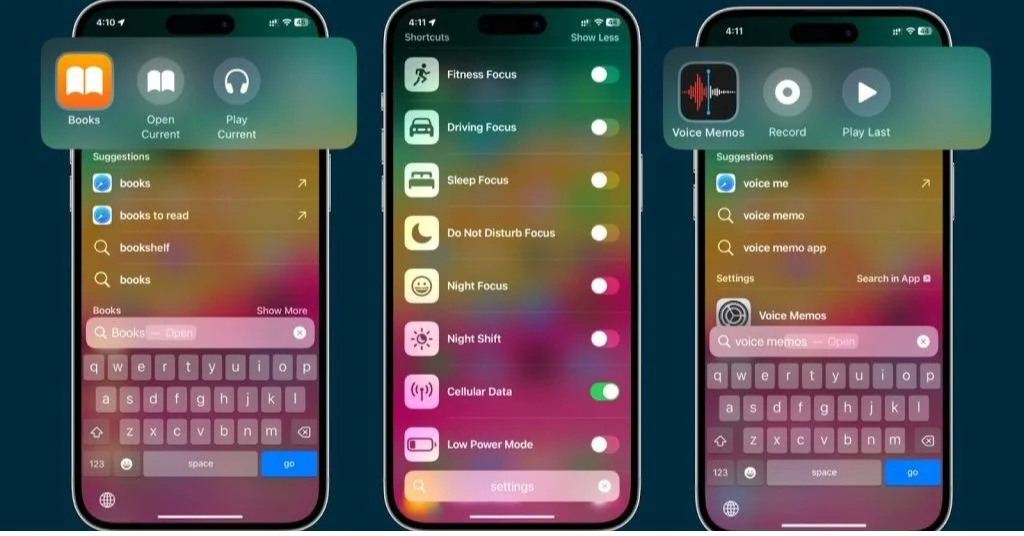
Sometimes apps may seem to disappear from your iPhone Home Screen. This doesn’t always mean they are deleted. Apps can be hidden in folders, removed from the Home Screen, restricted through settings, or moved to the App Library. Here’s a full guide to help you find hidden apps on iPhone using every possible method.
Method 1: Use the App Library
The App Library is a feature on your iPhone that shows all the apps installed on your device. Even if an app isn’t on your Home Screen, it still exists in the App Library. This is useful if you accidentally hid an app or just can’t find it. Here’s how to use it:
1. Open the App Library
- Swipe left on your Home Screen until you reach the last page.
- Swipe one more time, and you’ll see the App Library. It looks like a set of app icons organized into groups.
2. Search for the App
- At the top of the App Library, there is a search bar.
- Tap it and type the name of the app you are looking for.
3. Check if the App is Installed
- If the app shows up in the search results, it means it’s installed on your device.
- Even if it’s not visible on your Home Screen, it’s still accessible from here.
4. Move the App to the Home Screen
- To make it easier to access, tap and hold the app, then drag it back to your Home Screen.
5. Browse Categories
- The App Library automatically sorts apps into categories like Social, Utilities, Entertainment, and more.
- If you can’t remember the app’s name, you can browse through these categories to find it.
Method 2: Spotlight Search
Spotlight Search is one of the quickest and most efficient ways to locate apps on your iPhone, especially when the app might be hidden in folders, placed on a different Home Screen page, or even removed from the Home Screen entirely. Unlike scrolling through multiple pages or folders manually, Spotlight Search scans your entire device, including apps, contacts, emails, messages, and suggested App Store results.
Steps to use Spotlight Search:
1. Access Spotlight Search
- Swipe down from the middle of your Home Screen. It’s important to swipe from the middle and not the top, because swiping from the top brings down the Notification Center.
- A search bar labeled “Search” will appear at the top of the screen, along with recent suggestions and apps you frequently use.
2. Type the app name
- Start typing the name of the app you are looking for in the search bar. Spotlight will display results in real-time as you type.
3. Check the results
- If the app is installed on your iPhone, it will appear in the search results.
- You can tap the app icon directly from the search results to open it instantly.
4. Additional benefits
- Spotlight Search can also show suggested apps from the App Store that you may want to download if they aren’t installed.
- It is particularly helpful for users with many apps spread across several Home Screen pages or inside folders, as it bypasses the need to manually locate the app.
Tip: If Spotlight Search does not show the app, it may not be installed, or it may be restricted through Screen Time or hidden using Home Screen settings.
Method 3: Screen Time App List
Screen Time is a feature in iOS that tracks your device usage and allows you to apply limits or restrictions on specific apps. Interestingly, it can also help you identify apps that may be hidden from your Home Screen or restricted through settings. Even if you cannot see an app normally, it might still be installed and appear in Screen Time’s usage list.
Steps to find apps using Screen Time:
1. Open Settings → Screen Time: Launch the Settings app and scroll down to select Screen Time. If Screen Time is not enabled, you may need to turn it on first.
2. Tap See All Activity: This shows a detailed breakdown of your app usage over time, including daily and weekly summaries.
3. Scroll to the App Usage list: Here, you will find all apps that have been used recently. This list confirms whether an app is installed, even if it is hidden or restricted.
4. Identify hidden apps: Apps that are restricted using Screen Time will still appear in this list. You can adjust the restrictions to make these apps visible again by going into App Limits or Always Allowed settings.
Method 4: Check the App Store
The App Store is another reliable way to check whether an app is installed on your iPhone. This method works even if the app is hidden due to Home Screen settings, restrictions, or if it has been removed from view. The App Store recognizes apps that are installed and provides options accordingly.
Steps to check apps in the App Store:
1. Open the App Store: Tap the App Store icon on your Home Screen or access it through Spotlight Search.
2. Search for the app: Use the search bar at the top of the App Store screen to type the app name.
3. Check the app status:
- If the app is installed, you will see an Open button next to it. Tapping Open will launch the app directly.
- If the app is not installed, the button will display Get or show a cloud download icon. This allows you to download the app again.
Additional tips:
- This method is useful for apps hidden in the App Library or within folders on the Home Screen.
- It can also help identify if the app has been deleted by mistake, as you can reinstall it with a single tap.
- Some apps may show up as installed even if they are restricted via Screen Time; combining this method with Screen Time checks ensures accuracy.
iPhone Privacy Settings to Hide Apps
iOS is designed with strong privacy in mind. It gives you multiple layers of control to hide apps, manage who can see them, and reduce digital exposure. These tools work together to protect your personal space without deleting apps.
1. Screen Time Restrictions
Screen Time is more than a usage tracker it’s a powerful privacy tool.
How it works:
- You can restrict access to certain apps based on category or individually.
- Restrictions can hide apps completely, so they disappear from the home screen and can’t be launched without disabling the restriction.
Key features:
- App Limits: Set daily usage limits for specific apps. When the limit is reached, the app is hidden or requires a passcode to reopen.
- Content & Privacy Restrictions:
- Go to Settings → Screen Time → Content & Privacy Restrictions → Allowed Apps.
- You can toggle off apps like Safari, Camera, Mail, FaceTime, and others. They vanish from the home screen, creating privacy for apps you don’t want others to see.
Why it helps: Even if someone has access to your phone, restricted apps won’t appear anywhere. You can combine this with a Screen Time passcode to prevent changes.
2. Notifications Management
Even if an app is hidden from your home screen, it can still show up through notifications. Notifications include pop-ups, sounds, badges (the little red dots), or previews of messages. If these appear, someone could see that the app exists, even if it’s hidden.
How to manage notifications:
1. Open Settings → Notifications → [App Name].
2. Adjust these options:
3. Lock Screen notifications: Turn this off so alerts don’t appear when your phone is locked.
- Banners and Sounds: Turn these off to prevent pop-up alerts and sounds while using your phone.
- Show Previews → Never: This hides the content of messages and notifications so no one can read them without opening the app.
- Badges: Turn off red dots that appear on app icons for unread messages.
Why it helps: Even if the app is installed and active, notifications won’t give it away. No sounds, pop-ups, or previews will appear, keeping your private apps truly invisible to anyone who picks up your phone.
3. Focus Modes – In-Depth
Focus Modes in iOS are like customizable filters for your iPhone. They allow you to control which apps, notifications, and people are visible depending on the time of day or activity. Think of it as a privacy shield that dynamically hides apps.
How to set up a Focus:
1. Go to Settings → Focus → + (Create New Focus).
2. Choose a template: Personal, Work, Sleep, or create a custom Focus.
3. Customize allowed notifications:
- Choose people and apps that are allowed during this Focus mode.
- All other apps disappear from the home screen and are inaccessible until you switch Focus off.
Advanced uses of Focus Modes:
- Automate Focus: You can set a Focus to start at certain times (e.g., Work Focus 9 AM–5 PM) or at certain locations (like the office).
- Hide work apps during personal time: Your social media apps could be hidden when Work Focus is on.
- Dynamic home screen pages: Focus Modes allow you to hide entire home screen pages, so apps you want private aren’t even visible unless you switch Focus off.
Why it helps: Focus Modes provide dynamic and flexible privacy. Unlike Screen Time restrictions that are fixed, Focus lets you hide apps only when needed without deleting or uninstalling them. It’s perfect for sensitive apps, ensuring they’re invisible at critical times.
Final Thoughts
Hiding apps on iPhone is a straightforward process that enhances privacy, organization, and focus. Whether you want to hide apps on iPhone without deleting them, manage hidden apps through iOS settings, or simply declutter your home screen, there are multiple methods to suit your needs. By understanding hidden apps on iPhone and how to access them when necessary, you can maintain a clean, secure, and personalized device.
Mastering these steps ensures you have control over what appears on your iPhone while keeping all your apps functional and private. Start organizing your iPhone today and experience a clutter-free, secure mobile experience.
Frequently Asked Questions(FAQs)
Go to Settings > Screen Time > Content & Privacy Restrictions. Turn on restrictions, then tap Allowed Apps and toggle off the apps you want hidden. You can also use Content Restrictions to hide apps by age rating, preventing access to apps unsuitable for certain users.
Hide apps on iPhone home screen by moving them to the App Library. Tap and hold the app, choose Remove App, then select Move to App Library to keep it accessible but hidden. Alternatively, organize apps into folders and place them on the second or third page of a folder for a cleaner home screen.
Yes, hidden apps can still be accessed, depending on the device and settings. Hiding only removes the app icon from the home screen it doesn’t uninstall or block the app. Someone who knows how to search the app list, check app settings, or use device search can still find and open them.
The best way to lock apps on iPhone is using Screen Time. Go to Settings → Screen Time → App Limits, set limits for specific apps, and protect with a passcode. Alternatively, some apps like Notes or third-party apps offer password or Face ID protection for added security.
Tap and hold any app until all apps start jiggling. Drag an invisible app onto the app you want to hide to create a folder. Keep the invisible app on the first page and move the app to hide to the folder’s second page, making it hidden from view.